Generative AI has got tongues wagging. There are numerous tools to now create images from text inputs, there are generative elements creating wallpapers on phones and televisions, and then there’s generative AI that’s working to aid you with your images. Google’s Magic Editor – which launched on the Pixel 8 Pro in 2023 – set a new standard for mobile image editing. And now Samsung wants a slice of this pie.
Galaxy AI launched with the Galaxy S24 and promised a range of features, including generative edits for photos. Accessed through Samsung’s Gallery – just as Magic Editor is accessed through Google Photos – these two services both have the same aim: to give you access to generative AI to adapt and enhance your photos.
But how do they compare and which is better?
Google Magic Editor: It really is magic
Google definitely has the advantage when it comes to branding. Samsung bundled everything together as Galaxy AI, but that doesn’t quite have the ring to it that Magic Editor does. Google has other AI in its phones, but Magic Editor is Magic Editor and everyone knows what it does.

IMAGE CREDIT: THE DISCONNEKT
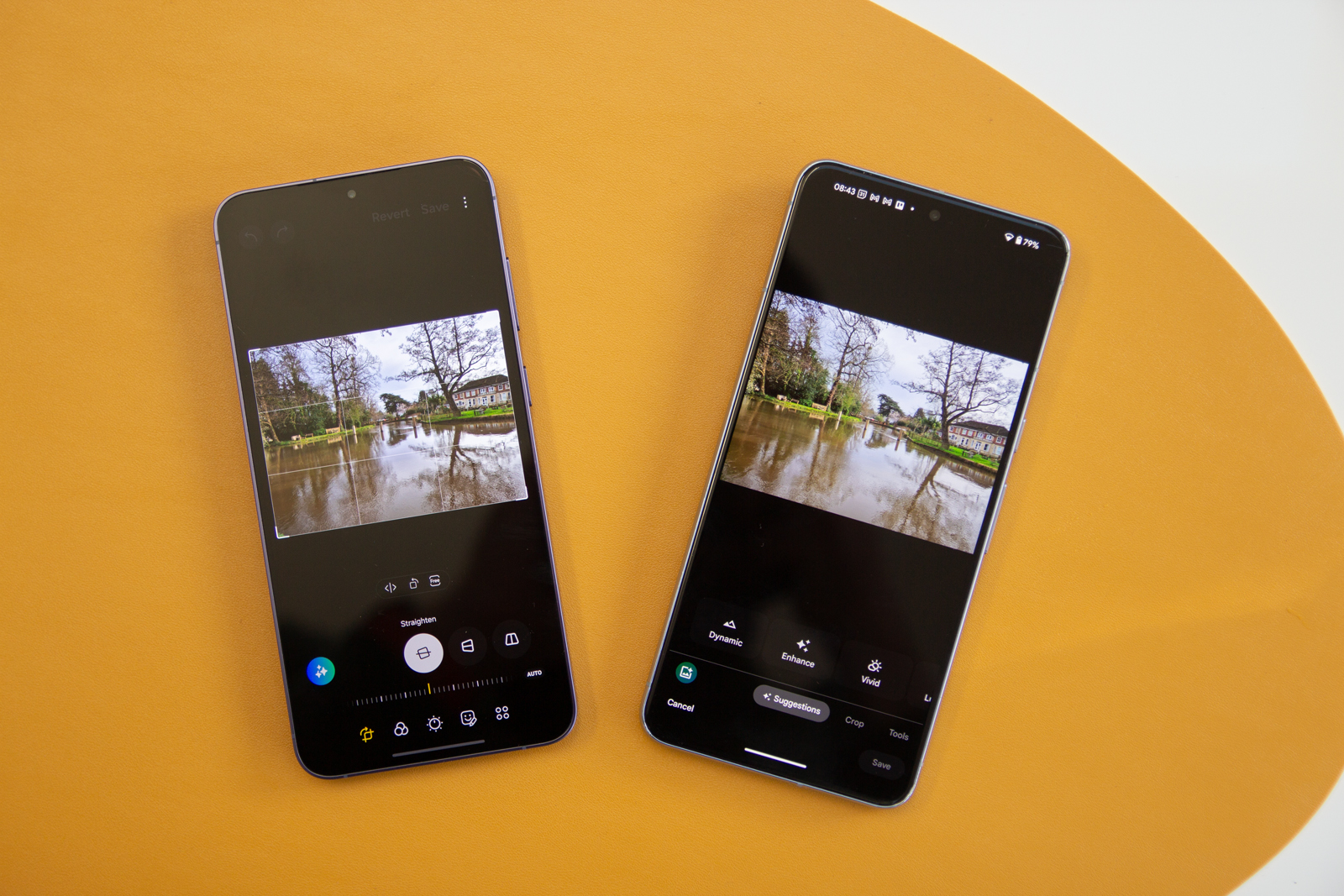
Magic Editor sits in Google Photos. Open an image and tap on edit and the logo for Magic Editor sits in the bottom left-hand corner. But there are a range of AI edits that Google will automatically suggest if it sees something in a photo. The main one is the suggestion to “remove people from the background” of a photo. This is an extension of Magic Eraser – which exists outside of Magic Editor if you just want to make quick edits.
Move into Magic Editor and you’ll be presented with the option to tap, circle or brush to select something, or, on particular types of photos, a central logo will give you the option of particular actions. This is AI looking for familiar elements in the image so that common edits can be applied.
This is a key part of Google’s offering: if it detects water, you’ll get the option to edit the water, if it detects sky, you can make edits to the sky – including the common option for a “golden hour” sunset edit. The key point here is that when making water or sky edits through this system, the replacements are water and sky. If you just select the sky and erase it, it might be replaced with something that’s not the sky – like buildings or mountains.


IMAGE CREDIT: THE DISCONNEKT
If a face is detected you get the option to make it a portrait and on many images, Google will just offer to “stylise” the image (see below), which takes the general feel of your photo and drags it off into different genres.
Returning to the option to tap, circle or brush. This will let you select parts of an image – a person, an object or just an area. You’ll then be able to remove that, with generative AI filling in the space. You can’t directly edit people – that’s a no-no for Google, but you can make them larger or smaller.

IMAGE CREDIT: THE DISCONNEKT
The key thing here is that Magic Editor gives you four versions of the edit so you can choose the one you prefer – some might be wildly different, some might be the same. Ultimately, you get to decide how you want your image to appear.
Samsung Galaxy AI: Less well packaged
As I said above, Samsung’s AI editing isn’t as well branded as Google, but there are some Magic Editor-rivalling functions. It sits in Samsung’s Gallery app, and like Magic Editor, to get the real generative AI button, you must select “edit” on your photo first. (You’ll also have to make sure it’s toggled on in the settings – it wasn’t on my Galaxy S24+).

IMAGE CREDIT: THE DISCONNEKT
Like Google, however, some smart editing is available outside of the “edit” functions. Swipe up on a photo and Samsung Gallery will suggest things it immediately sees. This includes blurring the background – the same as Google – but the most interesting is the new “remove reflections” and “remove shadows” option.
This is effective for getting rid of reflections with a tap. You’ll also have the option to “remaster” which is similar to Google’s “enhance” option but does a little more than brightening. In some cases, if it thinks a photo can’t be remastered, it will say “no remastering needed”.
There’s also the option for a 24-hour timelapse which takes a landscape photo and runs it through a sunset and sunrise in a short video, which is cute for the one time you’ll use it.


IMAGE CREDIT: THE DISCONNEKT
Moving onto the generative aspects. Once you have hit that edit button, the logo for Samsung’s generative edit sits in the bottom left-hand corner. The image is quickly scanned and you can then straighten the image – with generative in-fill around the edges – or you can start selecting elements of the photo.
There’s also the option to move selected elements or just save those selections as a sticker you can use elsewhere on your phone. Samsung likes the idea of moving content from one photo to another, so there’s also the option to bring in an element from another photo in your gallery, like a person for example.
The straightening is effective and I found the generative fill around the edges to be really good. Apart from straightening (which at first glance is the most obvious function that Samsung is pushing) you then have the option to select parts of an image. These can be erased, with generative AI filling in the remaining spaces – although I often found that when I erased something like a tree, the generative AI would fill the space with another tree, presumably because it’s contextually accurate.

IMAGE CREDIT: THE DISCONNEKT
Large selections also work. For example, you can select a body of water and remove it, with generative AI filling it in. The same can be done for the sky, the big difference here compared to Google is that Samsung doesn’t give you options, it just generates new content. You also don’t get those handy options that Google offers where it knows you’re working on the sky, or the water.
The key thing is that just selecting something and asking Samsung to generate an alternative often results in the exact same thing – especially when dealing with skies. What you need to do is erase the sky entirely, then it will generate a new sky that AI thinks fits the picture. It’s a little more indistinct than Google’s approach, but the results can be good once you get the hang of removing things.
I also found that Samsung is really good at putting reflections and ripples into water. This adds realism and has a natural look to it, so it’s an AI job well done. I’ve also found that in some instances Samsung will produce a surprising result.

IMAGE CREDIT: THE DISCONNEKT
In this photo of a door I deleted a panel and Samsung replaced it with a broken window – it looks great. Google, in the same situation, filled the space with contextually correct content, basically exactly what I deleted.
Samsung also drops a watermark into the corner of the image so that when you share that image people know it’s been edited using generative AI – but you can still delete things outside of the AI area and no watermark is applied.
So which is better?
At a surface level, Google’s Magic Editor is easier to use. It’s easier to control what’s going to happen and produce a more distinct result – you can edit skies and water to your heart’s content. The option to stylise images is fun, but ultimately, I don’t know how useful that would be, unless you just want to produce something abstract.
Samsung’s edge fill on straightening is a skill that Google doesn’t possess, but it’s harder to get to grips with. It just feels as though Samsung’s user interface could be better.


IMAGE CREDIT: THE DISCONNEKT
What both systems are really good at is letting you select things. If you want to delete a person, or a sign, or any other distraction out of an image, it’s easy to do so. The results are often really good too, meaning you can quickly clean up photos.
I’ve been using Google Magic Editor since the Pixel 8 Pro launched and it really is the talking point of these phones. I still think it will get more attention than Samsung’s equivalent, just because it’s better packaged and was the first to launch.
The thing that’s surprised me most about Magic Editor is the reaction from iPhone users. I’ve been sent images to edit and return, because they know how easy it is for me to do. That perhaps illustrates the impact this editing tech has had.